Home Blog Page 3

Create a simple Todo app in Android

0

Today, we’re gonna make a simple Todo app for Android using Android Studio 3. At first, this app only allows the user to add task without checking for completing or removing task. This will be done in Java and lately, I will make the same app using Kotlin.

Check out my full video here: (just be aware that my Englist is bad)

Create the App Layout

The first thing we need to do is lay out our application, thanks to Android studio, this hasn’t been that easy before. I suppose that all of you know how to set up an Android Studio project.

We’ll need these three main components:

  • EditText: where user types in a task they want to do
  • Button: where the user taps to add the task into the list
  • Listview: where list all the tasks of user’s

Should give every component a meaning id so that you can easily recall it while doing the Java code.

With button, don’t forget to give a value to onClick attribute, this value will be the name of the function you will define later on to be trigger when the button is hit.

You can take my layout by copying the XML code below and replace your activity_main.xml code with it. You can see the XML screen by clicking the XML tab in the bottom.

<?xml version="1.0" encoding="utf-8"?>
<RelativeLayout xmlns:android="http://schemas.android.com/apk/res/android"
xmlns:app="http://schemas.android.com/apk/res-auto"
xmlns:tools="http://schemas.android.com/tools"
android:layout_width="match_parent"
android:layout_height="match_parent"
android:baselineAligned="false"
android:orientation="vertical"
tools:context=".MainActivity">

<EditText
android:id="@+id/inputText"
android:layout_width="369dp"
android:layout_height="wrap_content"
android:layout_alignParentStart="true"
android:layout_alignParentTop="true"
android:layout_marginStart="8dp"
android:layout_marginTop="13dp"
android:ems="10"
android:hint="@string/placeholder"
android:inputType="textPersonName" />

<Button
android:id="@+id/addButton"
android:layout_width="match_parent"
android:layout_height="wrap_content"
android:layout_alignParentTop="true"
android:layout_centerHorizontal="true"
android:layout_marginTop="57dp"
android:onClick="onClickAdd"
android:text="@string/buttonText" />

<ListView
android:id="@+id/listView"
android:layout_width="match_parent"
android:layout_height="match_parent"
android:layout_alignParentStart="true"
android:layout_alignParentTop="true"
android:layout_marginStart="0dp"
android:layout_marginTop="107dp" />
</RelativeLayout>

Note that in my activity_main.xml I have 2 string variable for button name android:text="@string/buttonText" and text input placeholder android:hint="@string/placeholder". Those variables are defined in res/values/strings.xml

I also assigned the onClick attribute of the button with a function name “onClickAdd” you can name it whatever you want, and you will use it later in your code. android:onClick="onClickAdd"

<resources>
<string name="app_name">TodoAppJava</string>
<string name="buttonText">Add</string>
<string name="placeholder">type here..</string>
</resources>

Start to code

Now, we go to the file MainActivity.java or whatever your main java file for the main screen is. I will show you the code first than explain later.

package com.samderlust.todoappjava;

import android.support.v7.app.AppCompatActivity;
import android.os.Bundle;
import android.view.View;
import android.widget.ArrayAdapter;
import android.widget.Button;
import android.widget.ListView;
import android.widget.TextView;

import java.util.ArrayList;

public class MainActivity extends AppCompatActivity {

Button button;
EditText inputText;
ListView listView;
ArrayList<String> list;

public void onClickAdd(View v){

String text = inputText.getText().toString();
list.add(text);
ArrayAdapter adapter = new ArrayAdapter<>(this,android.R.layout.simple_list_item_1,list);
listView.setAdapter(adapter);
}

@Override
protected void onCreate(Bundle savedInstanceState) {
super.onCreate(savedInstanceState);
setContentView(R.layout.activity_main);

button= findViewById(R.id.addButton);
inputText=findViewById(R.id.inputText);
listView=findViewById(R.id.listView);
list = new ArrayList<>();
}
}

1. Import things:

We need to import the API and components that we need to use for making the application

2. Declare Component

  • Button button;
  • EditText inputText;
  • ListView listView;
  • ArrayList<String> list;

We declare the components in the top of the class since we want to use them in many functions inside the class. As you know, if we declared it inside a function, it couldn’t be accessed from other function. You will be more clear about this when we go on.

3. onCreate Function

This function is auto-generated with the java file, this function will be call at first when the application runs. It’s similar to the main function in a Java application.

That’s why we define all the component inside this method. Remember when we made the layout, we give each component an Id, this is the time we need it. The function findViewById allows you to assign the layout component to a Java variable. It takes one parameter, which is the Id of the component and we provide the Id follow R.id

  • button= findViewById(R.id.addButton);
  • inputText=findViewById(R.id.inputText);
  • listView=findViewById(R.id.listView);

We use the arraylist list = new ArrayList<>(); to stored all the task that user add to the list. Later on, we will render all elements inside this arraylist to the ListView layout component and that’s how all the items will be display on the screen.

4. onClickAdd function

When we created a button, we give set the attribute onClick = onClickAdd, and we have to define this function so it will be trigger every time the button is tapped.

When user input something, this function will add it to the list, therefore we need to access some layout components inside this function.

  • String text = inputText.getText().toString(): We create a new variable to hold the text of the inputText field.
  • list.add(text); we add the text to the arraylist.
  • ArrayAdapter adapter = new ArrayAdapter<>(this,android.R.layout.simple_list_item_1,list); we need the ArrayAdapter to make data in an arraylist could be sync to the ListView component. The constructor function of ArrayAdapter takes 3 arguments: the context of the class (this), 2nd argument defines the layout of the list, the last argument is the data itself.
  • listView.setAdapter(adapter): Tell the ListView component to take the data from the array adapter and show it to the screen.

So far, we can run the application we there is an issue we need to fix.

After adding an item, users need to delete the text in the input field to make new items. we solve it by setting the text of the field to be empty at the end of the function. inputText.setText("");

A user can add an empty item: we solve this by using an if statement to check the value of the input field. If it’s not empty we will allow the function to work as normal. If it’s not, just do nothing.

So, the refactored onClickAdd function will look as below:

public void onClickAdd(View v){

String text = inputText.getText().toString();

if(!text.equals("")){
list.add(text);
ArrayAdapter adapter = new ArrayAdapter<>(this,android.R.layout.simple_list_item_1,list);
listView.setAdapter(adapter);
inputText.setText("");
}
}

Solving the Google practice code question

0

Applying for a Coop position in Google without any hope that they will get back to me. It was a rainy morning when I saw a new email notification, and it’s from Google, I was numb for a while and couldn’t believe in my eyes.

After the excitement, comes the anxiety, the requirements are to answer 2 coding sample questions in 90 minutes and I know it will be hard… I didn’t take a look at it until I finished all the final exams (it came at the right time, eh?).  So today, I read the email and see that they provide the practice question aside from the coding sample questions. That’s great, at least I could have some scene of what I’m doing. Sadly, there’s only one practice question available, I don’t think it’s enough for me to be prepared….

What is the practice question of Google interview?

We are given a string S consisting of N characters and an integer K. The string represents a software license key which we would like to format. The string is composed of alphanumerical characters and/or dashes. The dashes split the alphanumerical characters within the string into groups (i.e. if there are M dashes, the string is split into M+1 groups). The dashes in the given string are possibly misplaced.
We want each group of characters to be of length K (except for possibly the first group, which could be shorter, but still must contain at least one character). To satisfy this requirement, we will reinsert the dashes. Additionally, all the lower case letters in the string must be converted to upper case.
For example, in the license key “2-4A0r7-4k
” there are two dashes which split it into three groups of lengths 1, 5 and 2, respectively. If we want each group to be of length 4, then we would have to reinsert the dashes. Thus, for K = 4, the correctly formatted string is “24A0-R74K”.
Write a function:
function solution(S, K);
that, given a non-empty string S consisting of N characters, representing a license key to format, and an integer K, returns the license key formatted according to the description above.


For example, given S = “2-4A0r7-4k
” and K = 4, the function should return “24A0-R74K”, and for K = 3, the function should return “24-A0R-74K” as the first group could be shorter.Given S = “r” and K = 1, the function should return “R”.


Write an efficient algorithm for the following assumptions:
N and K are integers within the range [1..300,000];
string S consists only of alphanumerical characters (a−z and/or A−Z and/or 0−9) and/or dashes (-);
string S contains at least one alphanumerical character.


You can choose the programming language that you want among:  C, C++, C#, Go, Java, JavaScript or Python. For me, I chose JavaScript since this is the one that I feel comfortable the most.

To be honest, it was hard for me, I didn’t get used to this kind of question, and I’m not that good to solve it quickly. I was required to finish it in 30 minutes, I complete at the last second only for the naive solution not the optimal one.

Analyzing the solution

First, I decided to solve the easiest problem.

  • If the string S contains only 1 character, return that character in uppercase.
  • If the string S doesn’t contain any character, return invalid.
  • If the string S doesn’t consists only of alphanumerical characters (a−z and/or A−Z and/or 0−9) and/or dashes (-), return invalid.

Second, I must take all of dashes out of the string S. And I could transform the string to uppercase at this point also

Third, loop through the string and add “-” where it should be, depend on variable K

Lastly, return the finished String.

Naive Solutions

I started to code with a naive solutions, just to make it works with using the helps from built-in methods and doesn’t care about performance.

Since I’m not familiar with using Regex, I used a helper method for checking string valid. 

function isAlphaNumeric(char) {
var code = char.charCodeAt();
if (
!(code > 47 && code < 58) &&
!(code > 64 && code < 91) &&
!(code > 96 && code < 123) &&
!(code === 45 || code === 47)
) {
return false;
}
return true;
}
// This code will check if the character is number or alphabel or / or -

Here come the solution:

function solution(S, K) {
// write your code in JavaScript (Node.js 8.9.4)
if (S.length < 1) return false;
if (S.length == 1) return S.toUpperCase();

for (let c = 0; c < S.length; c++) {
if (!isAlphaNumeric(S[c])) return "";
}

let newStr = S.split("-")
.join("")
.toUpperCase()
.split("");

let count = 0;
for (let i = newStr.length - 1; i >= 0; i--) {
count++;
if (i !== 0 && count === K) {
newStr.splice(i, 0, "-");
count = 0;
}
}

return newStr.join("");
}

This code uses a lot of built-in methods which I think it has a big time complexity. Then I tried to improve my code without using too many built-in method.

Another Solution:

function test(S, K) {
if (S.length < 1) return "invalid";
if (S.length === 1) return S.toUpperCase();
if (K < 0) return "invalid";
for (let k in S) {
if (!isAlphaNumeric(S[k])) return "invalid";
}
let key = 0;
let strObj = {};
for (let c of S) {
if (c != "/" && c != "-") {
strObj[key] = c.toUpperCase();
key++;
}
}
let newStr = "";
let counter = key - 1;

for (let k in strObj) {
newStr += strObj[k];
if (counter !== 0 && counter % K === 0) {
newStr += "-";
}
counter--;
}
return newStr;
}

In this case,  I looped through the string and checked if a single character is not “-” or “/” I would add it to an object.

After having the object of characters setup, I make an empty string, loop through the object and then add every single character to the string. Concurrently, I made a counter that equals to the number of character and check for the right place that I should add the “-” to the string.

Though it works, I’m not sure this algorithm is good enough since I’ve just started learning about algorithm by an online course.

If you’re reading this post and know there is a better way, feel free to write something in comment section.

Sample sale app

0

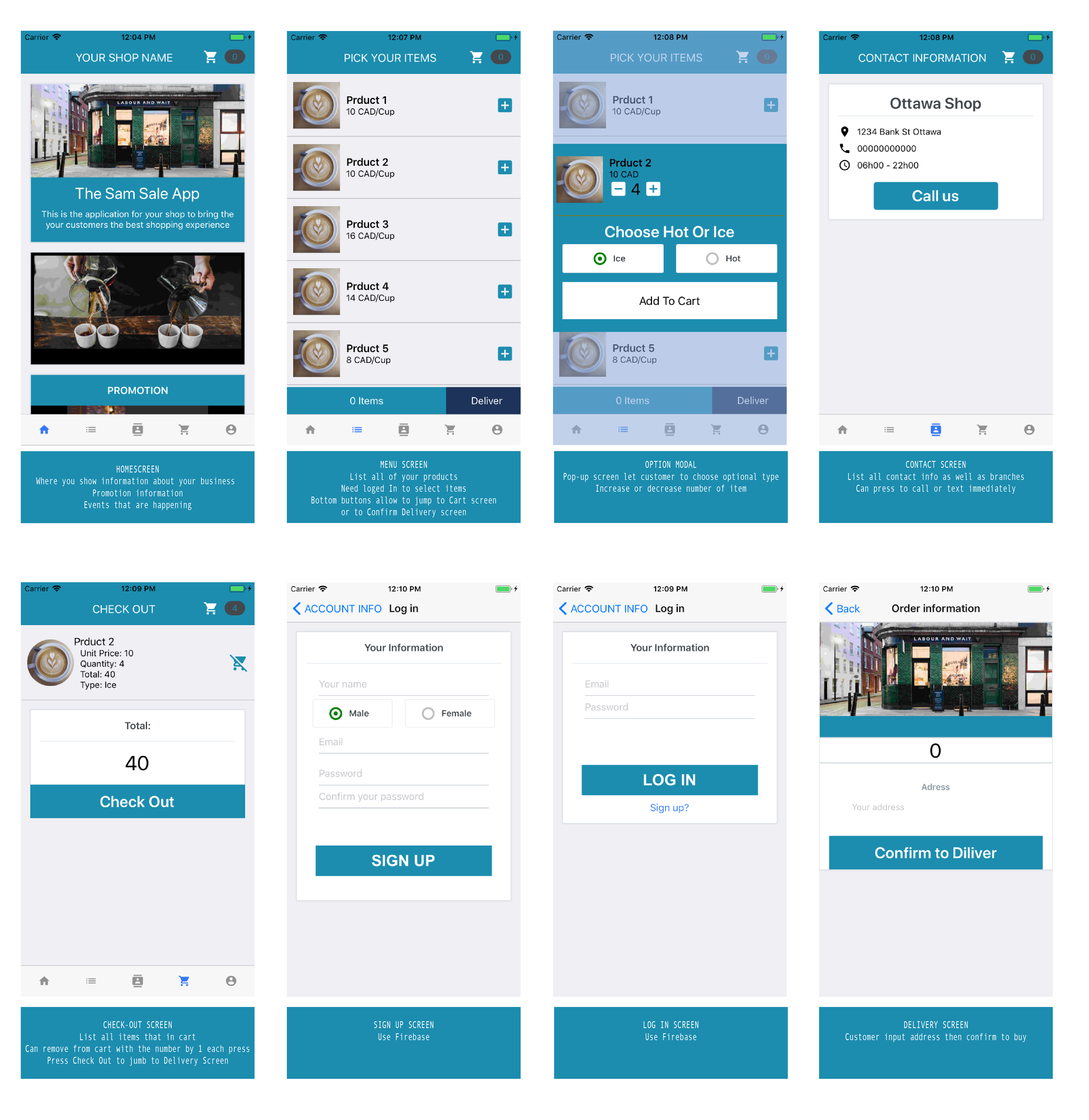
This is a sample selling app that is suitable for a coffee shop or small retail store. The application lists all products and price, features delivery screen where customer can inform for a delivery request.

Technical Info:

  • Status: Github repository – undeployed
  • Language: JavaScript
  • Framework: React Native

Description:

1. Home screen

  • Where to show an over view about your business.
  • Promotions that are happening.
  • Any promotion code.

2. Menu / Product List

  • Show all your items.
  • Customer can add item right to the cart.
  • Can chose from two or many type of one product (color, hot or cold for food,..).
  • Can jump right to the Check-out and confirm Delivery

3. Account info

  • To Log in or Sign Up
  • To show account info.
  • Show purchase history

See project in Github: https://github.com/samderlust/SamSaleApp

AConvert – A number converter

0

This convert helps you converting the number between binary, hexadecimal, octal, decimal. It can even calculating the ieee from decimal and convert to hexadecimal

Technical Info:

  • Status: Deployed
  • Language: JavaScript
  • Framework: React Native

Description:

The application have to screens:

The first screen is for converting numbers between decimal, binary, hex, and octal. The number from one format will be converted to the other three.

The second screen is for convert a decimal number to IEEE format and then convert to Hex. This application also list the steps to convert number such as: binary format, mantissa and exxponent.

Click to download

Java -Abstract keyword – why and how

0

As learning Java, we knew how to deal with Inheritance where all the subclasses will represent the spirit of the superclass. They inherited all the attributes and methods that belong to superclass. 

Abstract on a class

Once we have enough subclasses for covering all different kinds of the superClass. Sure we don’t need to make an instance from the superclass anymore. There is no scene for doing that.

For giving an simple example, let me put it in this silly way:

We have a superClass Finger, and we will have 5 subclasses, no need to say eh? Just in case of birth defects, we have another subclass for the extra fingers...

  • Finger (superClass)
    1. Thumb
    2. Index
    3. Middle
    4. Ring
    5. Little
    6. ExtraFinger

Up to this point, all the subclasses are enough to cover all kinds of a finger.  It seems like we don’t need to initialize any object straight from the Finger class. We make Finger an abstract class to prevent accidentally initialize it.

Another case of Abstract class is when your Inheritance tree has many layers, the top superClass at some point doesn’t need to be used for initializing an object, you also wanna make it abstract.

Note:

  • An abstract class cannot be used to initialize an object (it’s abstract, not a real object).
  • We make a superclass as Abstract when we find that all the subclasses cover all the type we need about that class and there’s no need to have an object that initialized directly from the superclass.
  • An Abstract class is kind of a principle that enforce all the subclass to follow all the abstract methods inside it.

Abstract on methods

If a method is declared as abstract in a superclass, the subclass must implement this method unless it will throw an error. The abstract method just needs to be declared (name, return type, variable type) without having the body.

We declare an abstract method to ensure that all the subclasses will have a kind of behavior in common, but the behavior doesn’t need to be the same between those subclasses.

public static abstract class Finger {
private String name;

public Finger(String name) { this.name = name; }

public abstract void action();
}

public static class Thumb extends Finger{
public Thumb(String name) { super(name); }

@Override
public void action() { System.out.println("Give a thumb up"); }
}

public static class Index extends Finger{

public Index(String name) { super(name); }

@Override
public void action() { System.out.println("Point to something"); }
}

Consider the code above. We want to enforce all the finger subclasses have a method of action but they can implement that method in their own way. We declared the action method in the superclass Finger as abstract without specific the code inside the method. The ability that allows the same method acts differently among all subclasses is known as Polymorphism. The abstract keyword here is just for enforcing all the subclasses implement that method. Keeping everything uniform.

Note:

  • An Abstract method must be declared inside an Abstract class.
  • An Abstract method couldn’t be implemented (have no code in its body) in abstract class since this class couldn’t be initialized.
  • All subclasses of an abstract class MUST implement the abstract methods.

public class AbstractClass {
public static abstract class Finger {
private String name;

public Finger(String name) { this.name = name; }

public abstract void action();
}

public static class Thumb extends Finger{
public Thumb(String name) { super(name); }

@Override
public void action() { System.out.println("Give a thumb up"); }
}

public static class Index extends Finger{

public Index(String name) { super(name); }

@Override
public void action() { System.out.println("Point to something"); }
}

public static class Middle extends Finger{
public Middle(String name) {
super(name);
}

@Override
public void action() { System.out.println("OK, F...ine!"); }
}
public static class Ring extends Finger{
public Ring(String name) {
super(name);
}

@Override
public void action() { System.out.println("Will you marry me?"); }
}

public static class Little extends Finger{
public Little(String name) {
super(name);
}

@Override
public void action() { System.out.println("What am I used for?"); }
}

public static void main(String[] args) {
//initialize all subclasses
}
}

Write and read an ArrayList object to a file in Java

3

Today, we will get to know how to write an ArrayList object to a file and then load the object back to the Java program form that file. This would help us to store the data to test other features that we added to the program without re-putting the common data.

First, we’ll take a look at the code below

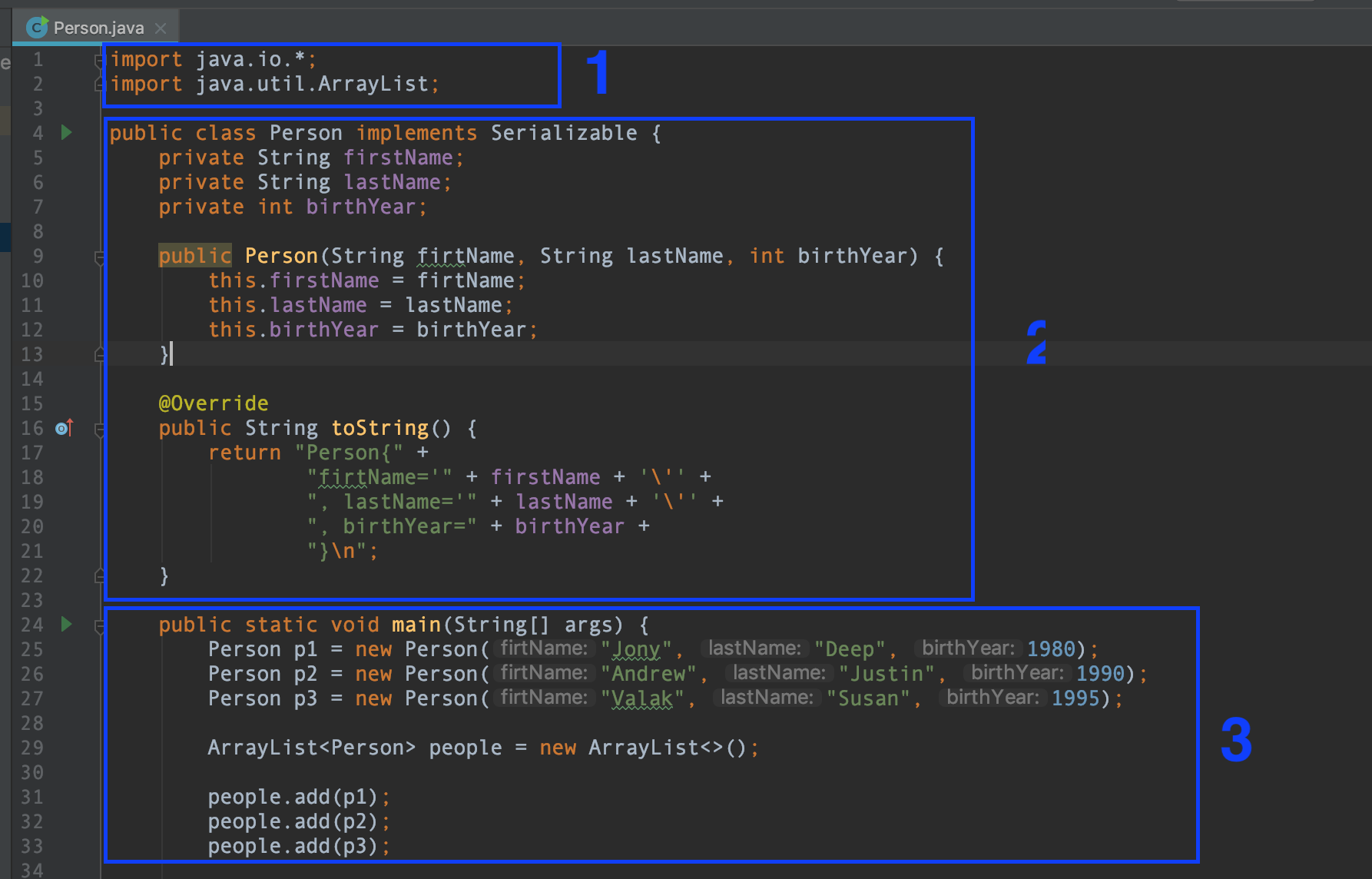
1. Since we will need to use a lot of classes inside java.io, we import everything inside that specific library.

2. Create a class Person with 3 attributes, a constructor function and overriding toString method to print the detail of an object we will initialize later. As this the objects of this class will be used to write to file and then load back, we need to implement the Serializable interface to indicate Java that this class can be serialized or deserialized.

3. inside this main methods we will create 3 objects of the class Person. Then, we create an ArrayList name people and add those 3 Person objects.

Now, we are ready to write this Arraylist into a file.

Write an object into a file.

We add this code to the main method.

//write to file
try{
    FileOutputStream writeData = new FileOutputStream("peopledata.ser");
    ObjectOutputStream writeStream = new ObjectOutputStream(writeData);

    writeStream.writeObject(people);
    writeStream.flush();
    writeStream.close();

}catch (IOException e) {
    e.printStackTrace();
}

Because writing and reading data can cause Error we need to use a try catch block to handle the Exception that can occur.

FileOutputStream writeData = new FileOutputStream(“peopledata.ser”): Creates a file output stream to write to the file that we provide inside the parentheses. You can provide the path to the file if you want, in this case, I just give the file name, so that the file will be stored in the same folder with the .java file

ObjectOutputStream writeStream = new ObjectOutputStream(writeData):  ObjectOutputStream will handle the object to be written into the file that FileOutputStream created.

FileOutputStream and ObjectOutputStream should come together in order to write an object to a file.

writeStream.writeObject(people): tell the program to write this peple object which is an ArrayList that we’ve just created above into the file peopledata.ser
writeStream.flush(): using the flush method here is not really necessary but it’s a good practice to have flush() since it will flush all the data in the stream, make sure data is written into the file.
writeStream.close(); we close the stream after the writing is done. This also releases the system resources.

Open the file peopledata.ser and you will see that there is something written. Don’t be afraid that you can’t read it, Java can.

��srjava.util.ArrayListx����a�IsizexpwsrPerson-ĩ��9/I birthYearL 
firtNametLjava/lang/String;L lastNameq~xp�tJonytDeepsq
~�tAndrewtJustinsq~�tValaktSusanx

Reading the data from a file

Writing is done, now we can load the data from the file to be used in our program.

Append the code below to the main method

try{
    FileInputStream readData = new FileInputStream("peopledata.ser");
    ObjectInputStream readStream = new ObjectInputStream(readData);

    ArrayList<Person> people2 = (ArrayList<Person>) readStream.readObject();
    readStream.close();
    System.out.println(people2.toString());
}catch (Exception e) {
    e.printStackTrace();
}

Still, we use try-catch to ensure that all the exceptions will be caught.

FileInputStream readData = new FileInputStream(“peopledata.ser”) & ObjectInputStream readStream = new ObjectInputStream(readData): note that this time we use Input instead of Ouput since we want to read from the file into the program.

ArrayList<Person> people2 = (ArrayList<Person>) readStream.readObject(): We create a new ArrayList people2 just to make sure this is a new object that is distinct from the existing people object. We assign the value that we reed form the file “peopledata.ser” and make sure we cast the value into an ArrayList of Person.

readStream.close(): close the reading stream.

System.out.println(people2.toString()): print the new ArrayList to the console to see if all the data is loaded correctly.

[Person{firtName='Jony', lastName='Deep', birthYear=1980}
, Person{firtName='Andrew', lastName='Justin', birthYear=1990}
, Person{firtName='Valak', lastName='Susan', birthYear=1995}
]

Yes, it’s correct.

import java.io.*;
import java.util.ArrayList;

public class Person implements Serializable {
    private String firstName;
    private String lastName;
    private int birthYear;

    public Person(String firtName, String lastName, int birthYear) {
        this.firstName = firtName;
        this.lastName = lastName;
        this.birthYear = birthYear;
    }

    @Override
    public String toString() {
        return "Person{" +
                "firtName='" + firstName + '\'' +
                ", lastName='" + lastName + '\'' +
                ", birthYear=" + birthYear +
                "}\n";
    }

    public static void main(String[] args) {
        Person p1 = new Person("Jony", "Deep", 1980);
        Person p2 = new Person("Andrew", "Justin", 1990);
        Person p3 = new Person("Valak", "Susan", 1995);

        ArrayList<Person> people = new ArrayList<>();

        people.add(p1);
        people.add(p2);
        people.add(p3);

        //write to file
        try{
            FileOutputStream writeData = new FileOutputStream("peopledata.ser");
            ObjectOutputStream writeStream = new ObjectOutputStream(writeData);

            writeStream.writeObject(people);
            writeStream.flush();
            writeStream.close();

        }catch (IOException e) {
            e.printStackTrace();
        }

        try{
            FileInputStream readData = new FileInputStream("peopledata.ser");
            ObjectInputStream readStream = new ObjectInputStream(readData);

            ArrayList people2 = (ArrayList<Person>) readStream.readObject();
            readStream.close();

            System.out.println(people2.toString());
        }catch (IOException | ClassNotFoundException e) {
            e.printStackTrace();
        }
    }
}


Java Swing GUI – Make a Calculator (part 2) – Handle button event with ActionListener

0

In the last article, we’ve already known how to use JFrame, JPanel and add components into your application. In this post, we’ll learn how to handle the button event, for example, display something, or change the text field content when the button is clicked.

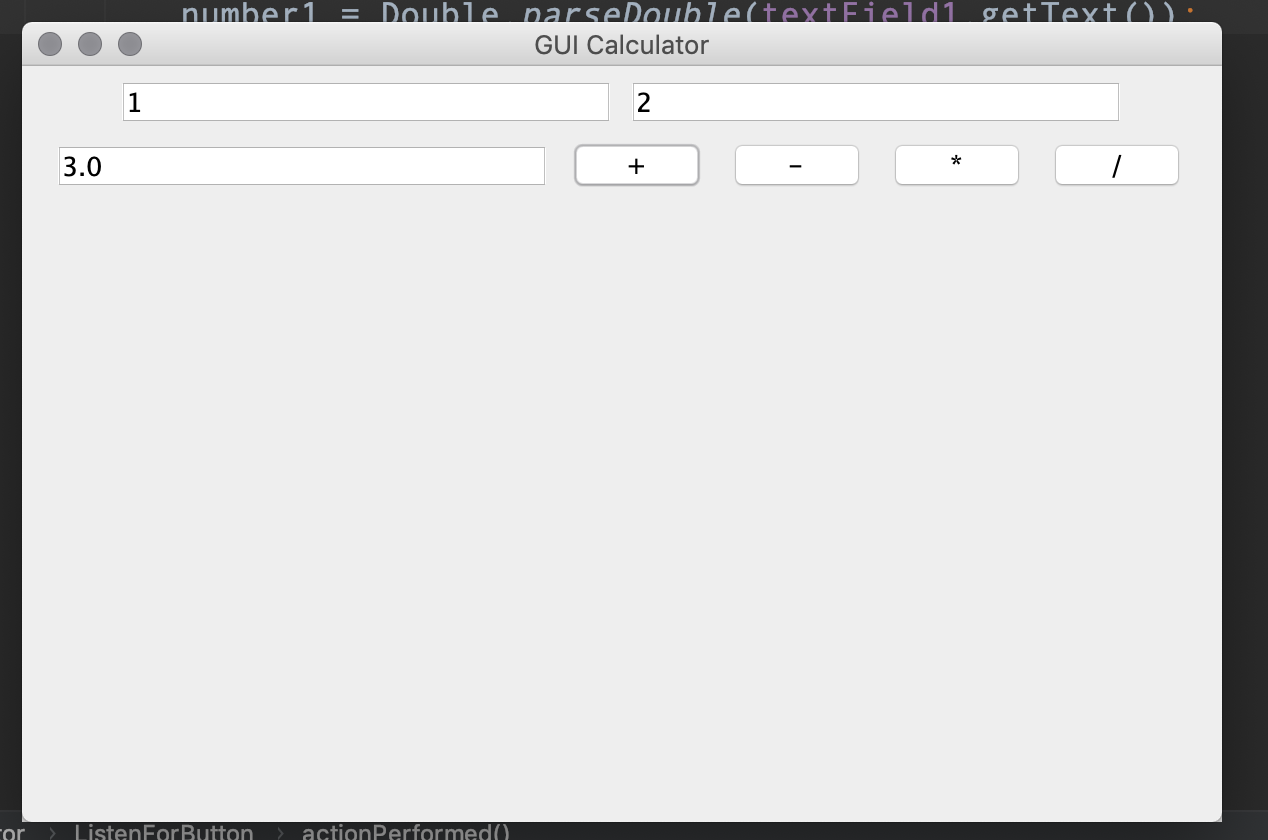
This is the calculator we will make on this post

Starting code

First, we will make some change on the code from the last post:

//This code is credited to samderlust.com
import javax.swing.*;

public class GUICalculator extends JFrame {

    private JButton button1;
    private JTextField textField1;

    public static void main(String[] args) {
        GUICalculator cal = new GUICalculator();
        cal.setTitle("GUI Calculator");
        cal.setSize(600,400);
        cal.setVisible(true);
        cal.setDefaultCloseOperation(JFrame.EXIT_ON_CLOSE);
    }

    public GUICalculator () {
        JPanel panel1 = new JPanel();

        button1 = new JButton("button1");
        textField1 = new JTextField(20);

        panel1.add(button1);
        panel1.add(textField1);

        this.add(panel1);
    }
}

Now, we will have a window with just a button and a text field. Note that we declare the button1 and textField1 in the top so that we can use it everywhere later in the same class

Implement ActionListener interface

ActionListener is an interface that you can implement on a class to make a handler class that listens to the click event in a particular button to do something. Using an interface is another kind of Polymorphism when a class has only inherited the method and modify the method that suitable for its need.

There are several ways to implement this listener, but the common way is making a private handler class so that the code will be cleaner.  After the GUICalculator constructor, we declare a new private class.

private class ListenForButton implements ActionListener {

    @Override
    public void actionPerformed(ActionEvent e) {
       if(e.getSource() == button1) {
           textField1.setText("This is from the button1");
       }
    }
}
  1. private class ListenForButton implements ActionListener define a new private class that implements the ActionListener interface. Since we just use this class inside the class of  GUICalculator to set the event handler for the button inside this JFame, we make it private.
  2. public void actionPerformed(ActionEvent e) we override the method ofactionPerformed the ActionListener interface, as we’re overriding it, the signature of the method (name, return type, parameter) must be kept the same. If a button that is added this listener is clicked, it will trigger an event and send it to this ActionListener and pass an ActionEvent object (in this case we named it “e”)to the methodactionPerformed as a parameter.
  3. if(e.getSource() == button1) then we will evaluate where the ActionEvent object come from by using the getSource() method of that ActionEvent object. If it comes from the button1, we will do something. Since we will add some more buttons, using if statement helps us to determine which is the button that triggered the event. Therefore we can give it the appropriate actions
  4. textField1.setText("This is from the button1"); As the event is trigger from the button1, we will set the Text of the textField1 “This is from the button1“.

But with this alone, your button doesn’t work yet, because currently the button1 is not added the ActionListioner. Let’s do it

Add ActionListener to a button

Adding this code right above where we add the button1 to the panel1 panel1.add(button1):

ListenForButton listenForButton = new ListenForButton();
button1.addActionListener(listenForButton);
  • First, we make a new object of the private class ListenForButton that we have just declared.
  • Second, we add the ActionListener to the button1

Run your program and click the button.

See the magic? give yourself a bravo!

Now are you ready to rock and roll? Let make your app a little bit more complex.

Add more button into the app

We make a simple application that add 2 number together. We will need the following components

  • 2 text fields for inputting number
  • 1 text field for displaying result
  • 4 buttons of operations

1. Declare more buttons and text fields in the class

private JButton button2;
private JButton button3;
private JButton button4;
private JTextField textField2;
private JTextField textField3;

2. Define the buttons and text fields

button1 = new JButton("+");
button2 = new JButton("-");
button3 = new JButton("*");
button4 = new JButton("/");
textField1 = new JTextField(20);
textField2 = new JTextField(20);
textField3 = new JTextField(20);

3. Add action listener to all the buttons

ListenForButton listenForButton = new ListenForButton();
button1.addActionListener(listenForButton);
button2.addActionListener(listenForButton);
button3.addActionListener(listenForButton);
button4.addActionListener(listenForButton);

4. Add all the buttons and text fields to the panel

panel1.add(textField1);
panel1.add(textField2);
panel1.add(textField3);

panel1.add(button1);
panel1.add(button2);
panel1.add(button3);
panel1.add(button4);

Your app should look like this now

5. Rock the Action Listener

public void actionPerformed(ActionEvent e) {
    //1
    double number1 = 0;
    double number2 = 0;

    //2
    try {
        number1 = Double.parseDouble(textField1.getText());
        number2 = Double.parseDouble(textField2.getText());
    } catch (Exception error) {
        error.printStackTrace();
    }

    //3
    if (e.getSource() == button1) {
        textField3.setText(number1 + number2 + "");
    } else if (e.getSource() == button2) {
        textField3.setText(number1 - number2 + "");
    } else if (e.getSource() == button3) {
        textField3.setText(number1 * number2 + "");
    } else if (e.getSource() == button4) {
        textField3.setText(number1 / number2 + "");
    }
}

What we did in the code above:

  1. Declare 2 new double numbers and initial the value of them to 0;
  2. We use try catch to parse the content of the textfields1 and 2 int to double. The sake of using try catch here is if content is blank or text which are can’t parse into number our program wont be crashed.
  3. We will determine which is the button that is clicked to do the appropriate operation. I plus the empty string int the setText() method to cast everything into string.

Now, run your app and enjoy the hard work:

Full code:

//This code is credited to samderlust.com

import javax.swing.*;
import java.awt.event.ActionEvent;
import java.awt.event.ActionListener;

public class GUICalculator extends JFrame {

    private JButton button1;
    private JTextField textField1;

    private JButton button2;
    private JButton button3;
    private JButton button4;
    private JTextField textField2;
    private JTextField textField3;


    public static void main(String[] args) {
        GUICalculator cal = new GUICalculator();

        cal.setTitle("GUI Calculator");

        cal.setSize(600, 400);

        cal.setVisible(true);

        cal.setDefaultCloseOperation(JFrame.EXIT_ON_CLOSE);
    }

    public GUICalculator() {
        JPanel panel1 = new JPanel();

        button1 = new JButton("+");
        button2 = new JButton("-");
        button3 = new JButton("*");
        button4 = new JButton("/");
        textField1 = new JTextField(20);
        textField2 = new JTextField(20);
        textField3 = new JTextField(20);


        ListenForButton listenForButton = new ListenForButton();
        button1.addActionListener(listenForButton);
        button2.addActionListener(listenForButton);
        button3.addActionListener(listenForButton);
        button4.addActionListener(listenForButton);

        panel1.add(textField1);
        panel1.add(textField2);
        panel1.add(textField3);

        panel1.add(button1);
        panel1.add(button2);
        panel1.add(button3);
        panel1.add(button4);

        this.add(panel1);
    }

    private class ListenForButton implements ActionListener {


        @Override
        public void actionPerformed(ActionEvent e) {
            //1
            double number1 = 0;
            double number2 = 0;

            //2
            try {
                number1 = Double.parseDouble(textField1.getText());
                number2 = Double.parseDouble(textField2.getText());
            } catch (Exception error) {
                error.printStackTrace();
            }

            //3
            if (e.getSource() == button1) {
                textField3.setText(number1 + number2 + "");
            } else if (e.getSource() == button2) {
                textField3.setText(number1 - number2 + "");
            } else if (e.getSource() == button3) {
                textField3.setText(number1 * number2 + "");
            } else if (e.getSource() == button4) {
                textField3.setText(number1 / number2 + "");
            }
        }
    }
}

Java Swing GUI – Make a Calculator (part 1) – JFrame, JPanel and components

1

Tired of seeing your hundred lines of code just running in the console? Wanting to make something cool, a real desktop app?. If that’s your concern let’s go to learn Swing and make GUI (graphical user interface) for your application.

Those there is more than one way to make GUI with Java but the class will stay with Swing this term. Therefore, I’m writing some posts about Swing to help you gain some knowledge with this library

JFrame

In Swing, JFrame is a top-level window, every other component (text fields, buttons, panel,..) of your application will be stored in the JFrame.

To create a JFrame, we need to extend the main class from a JFrame class which is imported from Java Swing library. Consider the code below:

import javax.swing.*;

public class GUICalculator extends JFrame {
    public static void main(String[] args) {
        GUICalculator cal = new GUICalculator();

        cal.setTitle("GUI Calculator");

        cal.setSize(600,600);

        cal.setVisible(true);

        cal.setDefaultCloseOperation(JFrame.EXIT_ON_CLOSE);
    }
    public GUICalculator () { // constructor

    }
}
  1. GUICalculator cal = new GUICalculator(); First, we create an instance of the classGUICalculator. Since this class is extended from JFrame, it’ll make a new Window. Create 2 objects from this class in the main method will create 2 windows.
  2. cal.setTitle("GUI Calculator"); Second, we set the title for this window.
  3. cal.setSize(600,600); Third, we specify the size of the window when it first appears on the desktop.
  4. cal.setVisible(true); Fourth, sounds hilarious, but by default, the frame is not visible, we need to set the visibility to true so that it will be shown in the desktop. Otherwise, “You can’t see me”!
  5. cal.setDefaultCloseOperation(JFrame.EXIT_ON_CLOSE);Fifth, this single line of code will give you the ability to close the application when clicking on the close button in the title bar. Unless the app still runs and lie in the taskbar or dock if you use Macbook.

JPanel

Jpanel is where you place all small element such as button, field, spinner… before put everything into the JFrame. Each Panel is like a section of a whole big app. Like a story has many parts, a house has many rooms.

It helps you to handle, position, manage all the components in your application easier. For example, an application of the calculator will have 3 parts/ panels, the top panel holds the text field, the middle panel holds the operation button, the bottom panel holds all the number keys.

Let’s write something in the constructor function of GUICalculator

public GUICalculator () {
    JPanel panel1 = new JPanel();
    JLabel label1 = new JLabel("this label for panel1");

    panel1.add(label1);
    panel1.setBackground(Color.CYAN);
    this.add(panel1);
}


JPanel panel1 = new JPanel(); declaring a new panel.
JLabel label1 = new JLabel("this label for panel1"); declaring a new Label.
panel1.add(label1); adding the label to the panel.
this.add(panel1); placing the panel into the Frame.

Add some more Swing components…

Now we will add some more new components to our application. We will be writing the code below the where we declared the label1.

JButton button1 = new JButton("button1");
JTextField textField1 = new JTextField();
JTextArea textArea1 = new JTextArea(20, 20);

panel1.add(button1);
panel1.add(textField1);
panel1.add(textArea1);

Respectively, we declare a button, a text field, and a text area with a width of 20 and a height of 20. Then we add those three components to the panel.

I know it looks ugly but be proud since this is our first desktop application, and we will learn more about layout in the future.

As you can see the text field is too small, we can fix it by setting the width by the code below:

JTextField textField1 = new JTextField(20);

Ok, now the text field looks better.

In the next post, we will learn about the Action handler to work with button and append the text field.

Thanks for reading…

//This code is credited to samderlust.com
import javax.swing.*;

public class GUICalculator extends JFrame {
    public static void main(String[] args) {
        GUICalculator cal = new GUICalculator();

        cal.setTitle("GUI Calculator");

        cal.setSize(600,600);

        cal.setVisible(true);

        cal.setDefaultCloseOperation(JFrame.EXIT_ON_CLOSE);
    }

    public GUICalculator () {
        JPanel panel1 = new JPanel();
        JLabel label1 = new JLabel("this label for panel1");
        panel1.add(label1);


        JButton button1 = new JButton("button1");
        JTextField textField1 = new JTextField(20);
        JTextArea textArea1 = new JTextArea(20, 20);

        panel1.add(button1);
        panel1.add(textField1);
        panel1.add(textArea1);


        this.add(panel1);
    }
}

Set up a localhost and make a web page using MAMP and PHP

0

By the current time, MAMP had released a version for Windows. This helps Windows users have one more option set up an Apache localhost easily. So that, you can focus on coding some PHP instead of spending so much time setting up your localhost. The biggest advantage of MAMP is you just need to install and use with least manual config.

To download MAMP click here. They provide free and pro version. The install process is straightforward.

Install and create your PHP web app with MAMP

After installing, open MAMP and click on  “Start Servers” to start your localhost.

When you see the two checkboxes Apache Server and MySQL Server are green, the “Start Server” button turns green and change to “Stop Server” you know that everything is set up and you’re good to go.

Next, click on Open Start Page, the middle button to open the starting page.

This page is where you can access your website, phpinfo page and something else.

Click on “My Website” to go to your page, by default MAMP is installed in your C drive and so your web root folder must be “C:/MAMP/htdocs”.It means when you type “localhost” in your browser it will show the index file in the htdocs folder. Now, I will create a new file “add.php” and copy the code of the add application I created in this post (source code is at the end of the post) into this new file.  My folder now looks like this:

To access this specific page, I type “localhost/add.php”

So now I can run my simple web application in my localhost so easily, thank to MAMP.


How to use $_GET and $_POST arrays in PHP

1

GET and POST are two essential methods when a web communicates with the server. These methods determine whether the web is posting data to or getting data from the server.

PHP which is a language that was created for making the web, give us a useful way to handle the data in process of Post or Get method. In this post, we’re getting to know about $_GET and $_POST array in PHP.

There’s one thing you need to know that in a .php file, we can write HTML and PHP together, the PHP code must be written in between the tag <php? /*code here*/ ?>;

How to pass variables in URL

First of all, we need to know how to pass some variables or parameters in the URL.

http://localhost/task1.php/?firstName=Sam&lastName=Nguyen

After the normal URL:

  1. To declare the variable, we use “?” mark
  2. then the variable name
  3. “=” sign to assign a value
  4. the last thing is the value itself
  5. If you have multiple variables, separating them by “&” mark.

Using $_GET array in PHP

Now that we know how to pass the variables in the URL, we’re going to get it in PHP using $_GET. $_GET is a built-in variable of PHP which is an array that holds the variable that we get from the URL.

Since we passed some variable in the URL, we should know what is the name of variables to get it using the syntax $_GET[variable_name];

echo $_GET['firstName'] //Sam
echo $_GET['firstName'] //Nguyen
use "echo" to print the value to web page.

Validate variable in URL

There are two things we will consider here: first if the variable is declared, second if the variable is blank.

Using isset() to check if the variable is declared in URL, this is a function that returns boolean true if the parameter is detected in URL false if not. As long as the variable name is in the URL it will return true.

http://localhost/task1.php/?firstName=Sam&lastName=
isset($_GET['firstName'])  // true
isset($_GET['middleName']) // false
isset($_GET['lastName']) // true

As you can see in the code above, the lastName variable hasn’t been provided a valued but it still returns return true since isset() function detect the variable name in URL.

Now we need to check if the variable is empty/blank or not. This is as simple as any other language by comparing the variable to an empty string

http://localhost/task1.php/?firstName=Sam&lastName=
$_GET['firstName'] == "" // false
$_GET['lastName'] == "" // true

Using $_POST array in PHP

To use the Post method, we definitely need a form in our HTML file to handle data we want to post. The PHP built-in variable $_POST is also an array and it holds the data that we provide along with the post method.

Consider the simple application below, we will demand the user to put in 2 number to add them together.

<form method="POST">
    <h1>ADD 2 NUMBER</h1>
    <input type="number" name="num1">
    <input type="number" name="num2">
    <input type="submit">
    <?php
           echo $_POST["num1"] + $_POST['num2']
        ?>
</form>

The form in the code above has 2 data that we want to process that are stored in 2 input fields. Notice that these input fields have different name value. And the value of the name attribute is what we use to access the value of the input fields itself in PHP.

Whenever the post method is triggered by clicking the submit button, PHP will get the value of the variable that we desire to catch.

$_POST["num1"]  // this will hold the value of input field with name="num1"
$_POST['num2'] // this will hold the value of input field with name="num2"

And then, we will echo/ print out the sum onto the web page

echo $_POST["num1"] + $_POST['num2']

Source code for $_POST:

<!DOCTYPE html>
<html lang="en">
<head>
    <meta charset="UTF-8">
    <meta name="viewport" content="width=device-width, initial-scale=1.0">
    <meta http-equiv="X-UA-Compatible" content="ie=edge">
    <title>Add Two Numbers</title>
</head>
<body>
<form method="POST">
    <h1>ADD 2 NUMBER</h1>
    <input type="number" name="num1">
    <input type="number" name="num2">
    <input type="submit">
    <?php
           echo $_POST["num1"] + $_POST['num2']
        ?>
</form>
</body>
</html>